01 · Startup
Launch at login
Optionally launch AppTela when your Mac starts. Ready the moment you log in.
Organize your apps, your way.
A powerful, beautiful way to organize and access your apps. Arrange them across Screens, Categories, Groups, and Stacks. Make it yours.
The customizable macOS app launcher and Launchpad alternative
Screens, Categories, Groups and Stacks. Four levels of organisation to build the layout that fits how you work, not how an OS thinks you should.
Create multiple Screens for different contexts - Work, Creative, Utilities. Add Categories to organise apps into sections, or keep it simple.
Bundle related apps into Groups. Nest Groups within Groups up to 5 levels deep. Each level opens as its own styled window. Rename, clone, and rearrange any time.
Stack apps visually and expand with a peel-away transition. Launch Stacks open every app at once - ideal for project setups and morning routines.
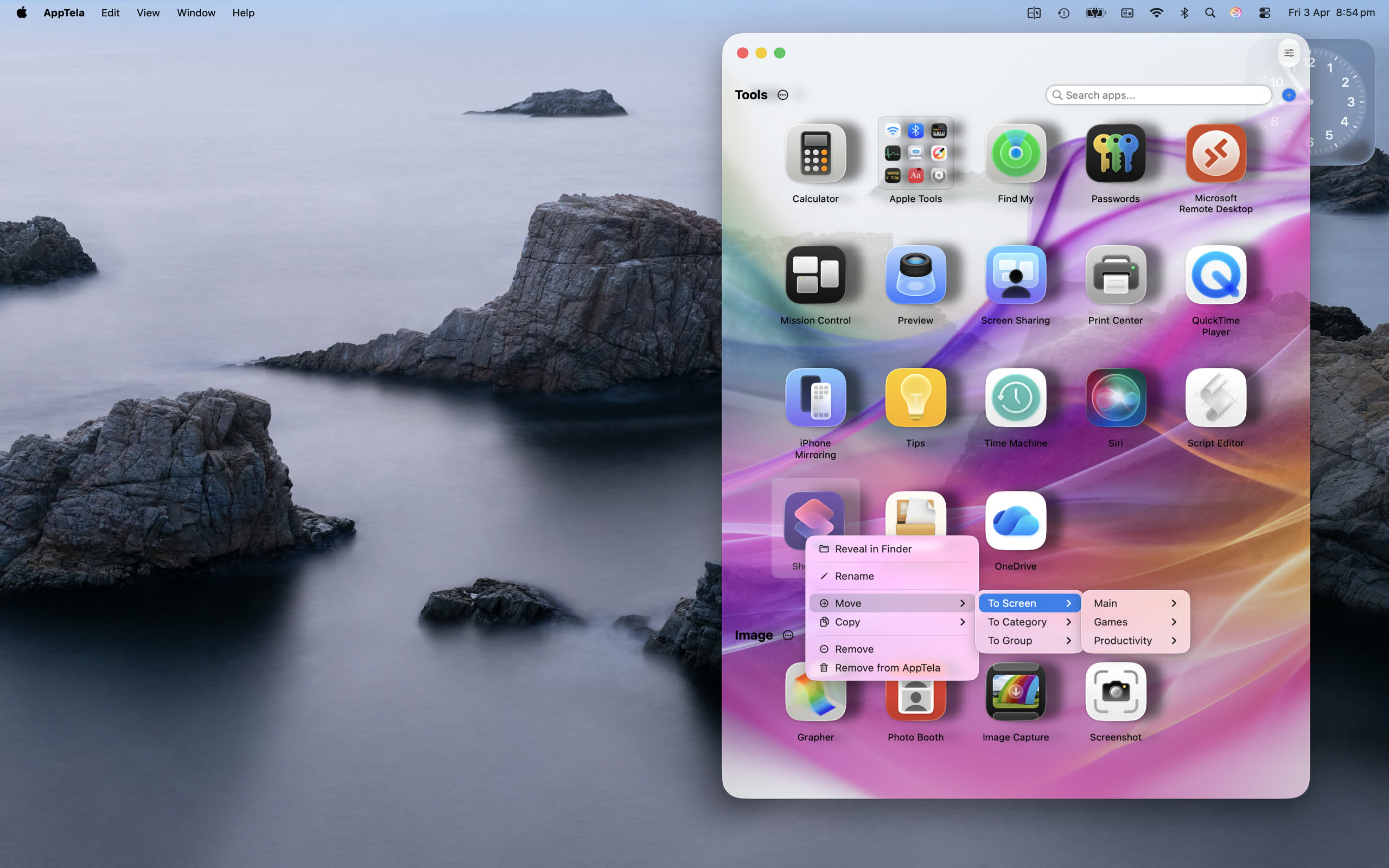
Rearrange apps by dragging within and across Screens, Categories, Groups and Stacks. Or use right-click context menus to move and copy.
AppTela never modifies, moves, or deletes any apps on your Mac. It stores lightweight references, not copies. Zero data collection, zero analytics, zero network calls. Everything stays on your Mac.
Perfect your setup, then lock it. No accidental changes. Unlock any time to edit.
Compact, wide, single-column, or fullscreen. AppTela reshapes to fit your workspace.
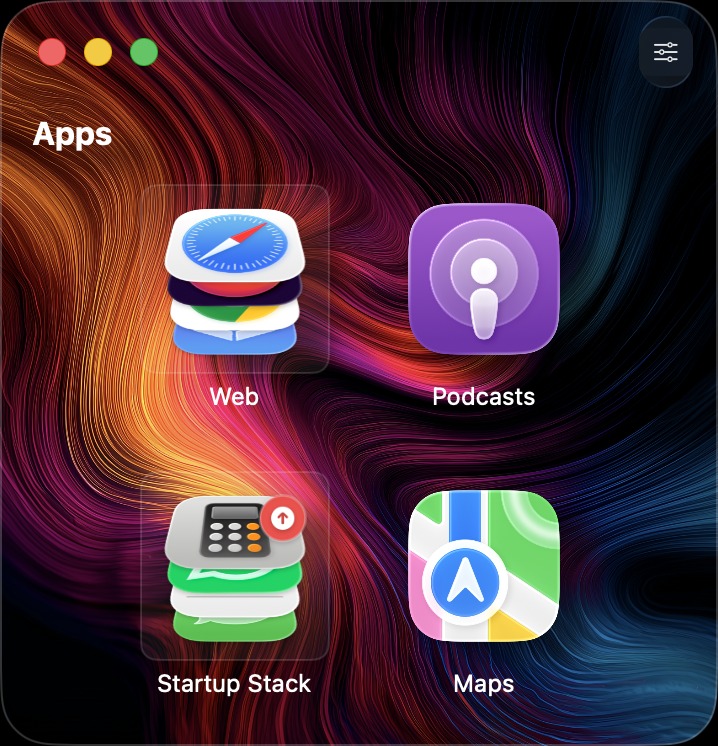 Compact
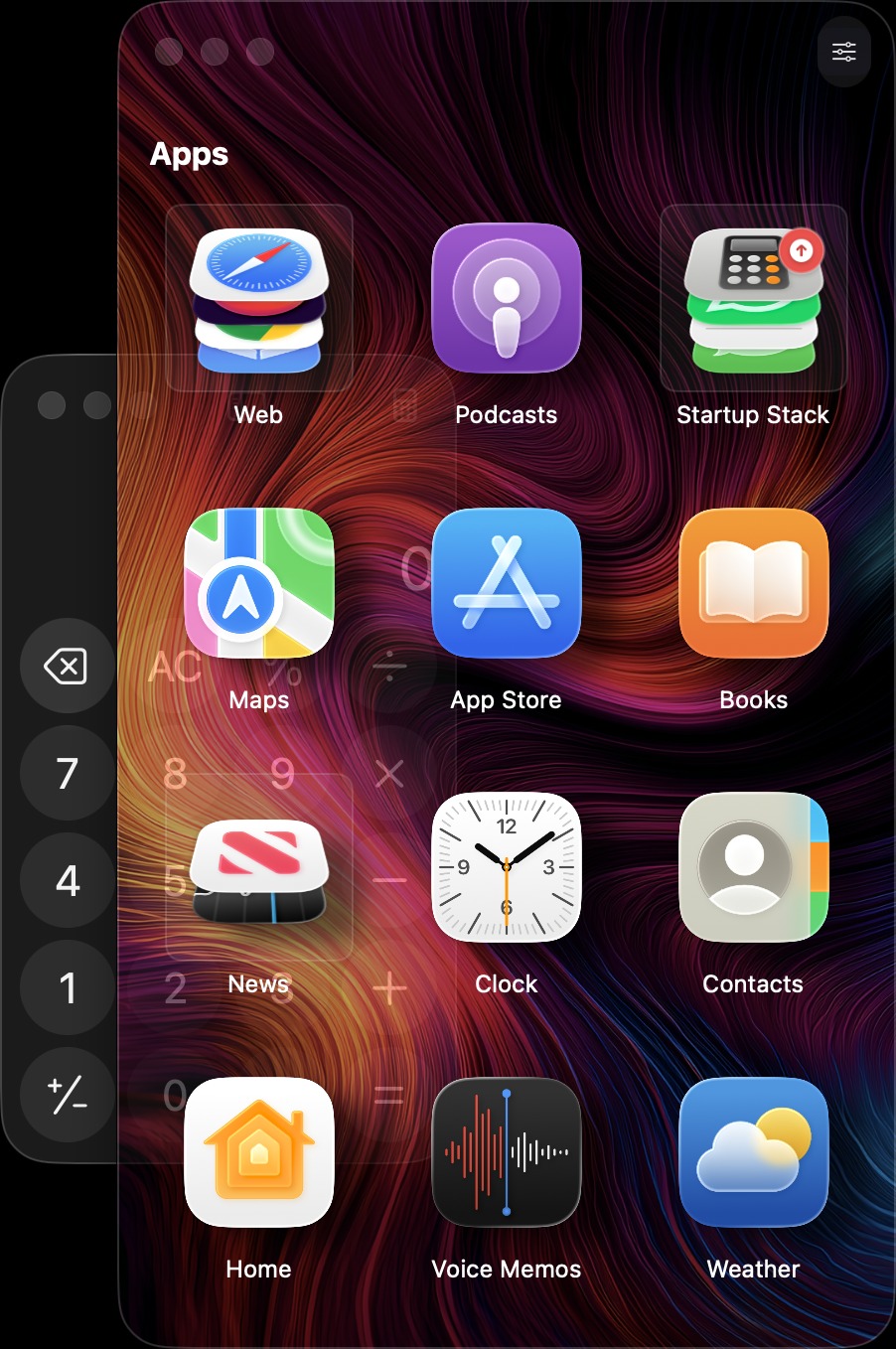 Glass
Glass
 Single Width
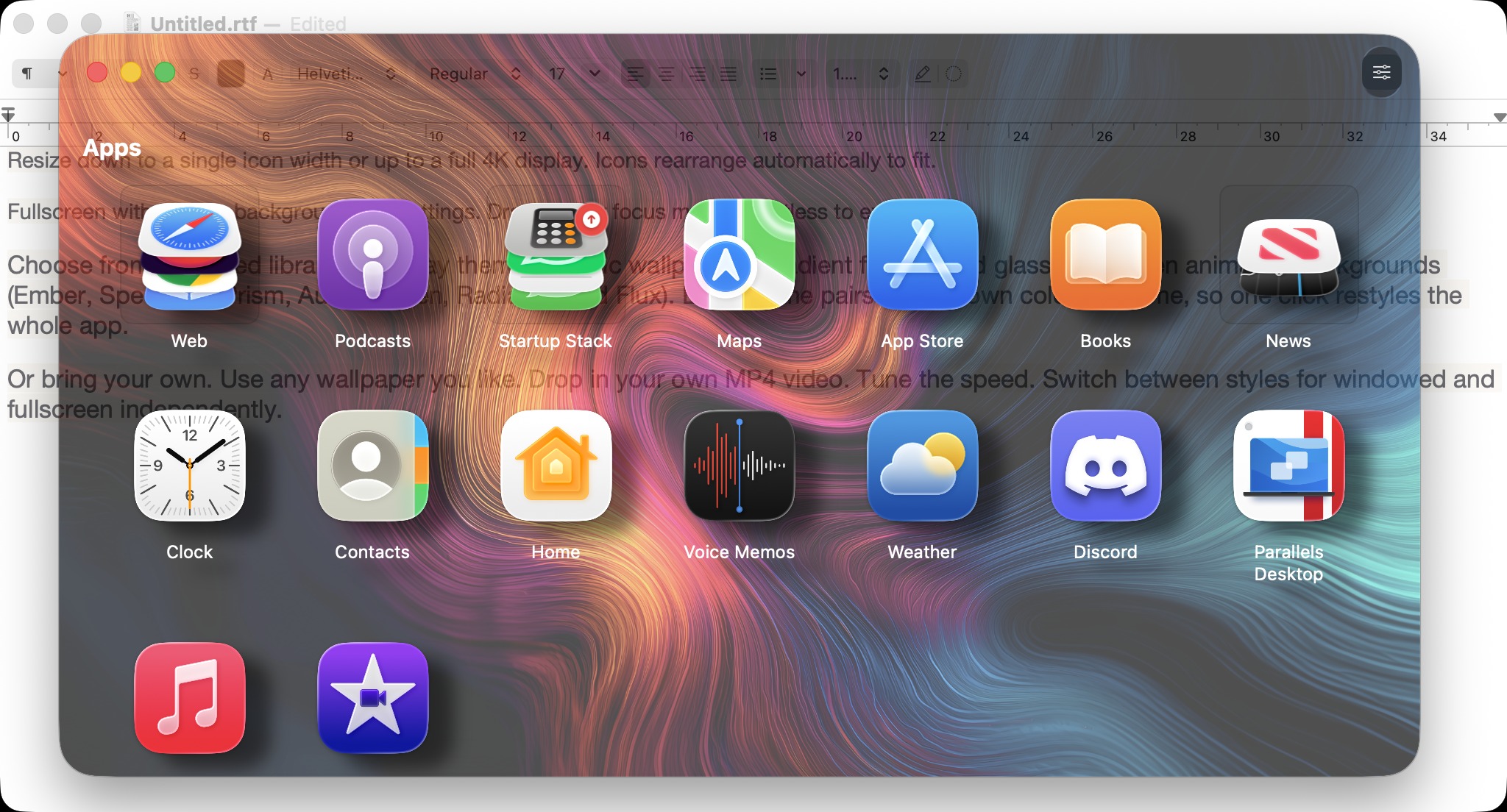 Wide with Glass
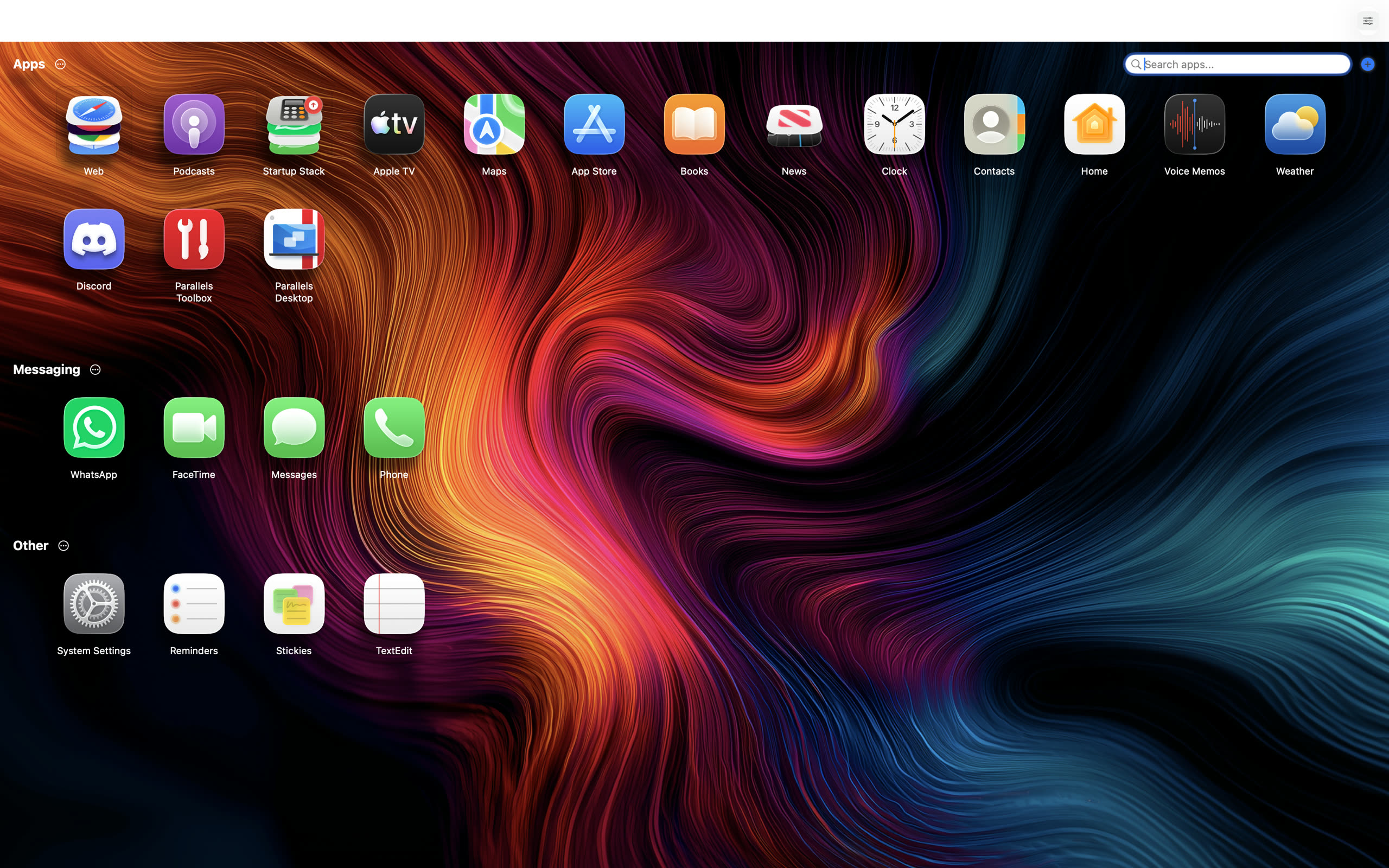 Fullscreen
Drag the window to any size. Icons rearrange automatically to fit, down to a single column.
Fullscreen with its own background and settings. Dramatic for focus mode, effortless to exit.
Window size, position and fullscreen state are restored every launch. Pick up exactly where you left off.
Optionally keep AppTela above other windows in windowed mode so it's always within reach.
Choose from a curated library of display themes - static wallpapers, gradient fills, frosted glass, and animated video backgrounds. Each theme pairs with its own colour scheme, so one click restyles the whole app.
Or bring your own. Use any wallpaper you like. Drop in your own MP4 video. Tune the speed. Switch between styles for windowed and fullscreen independently.
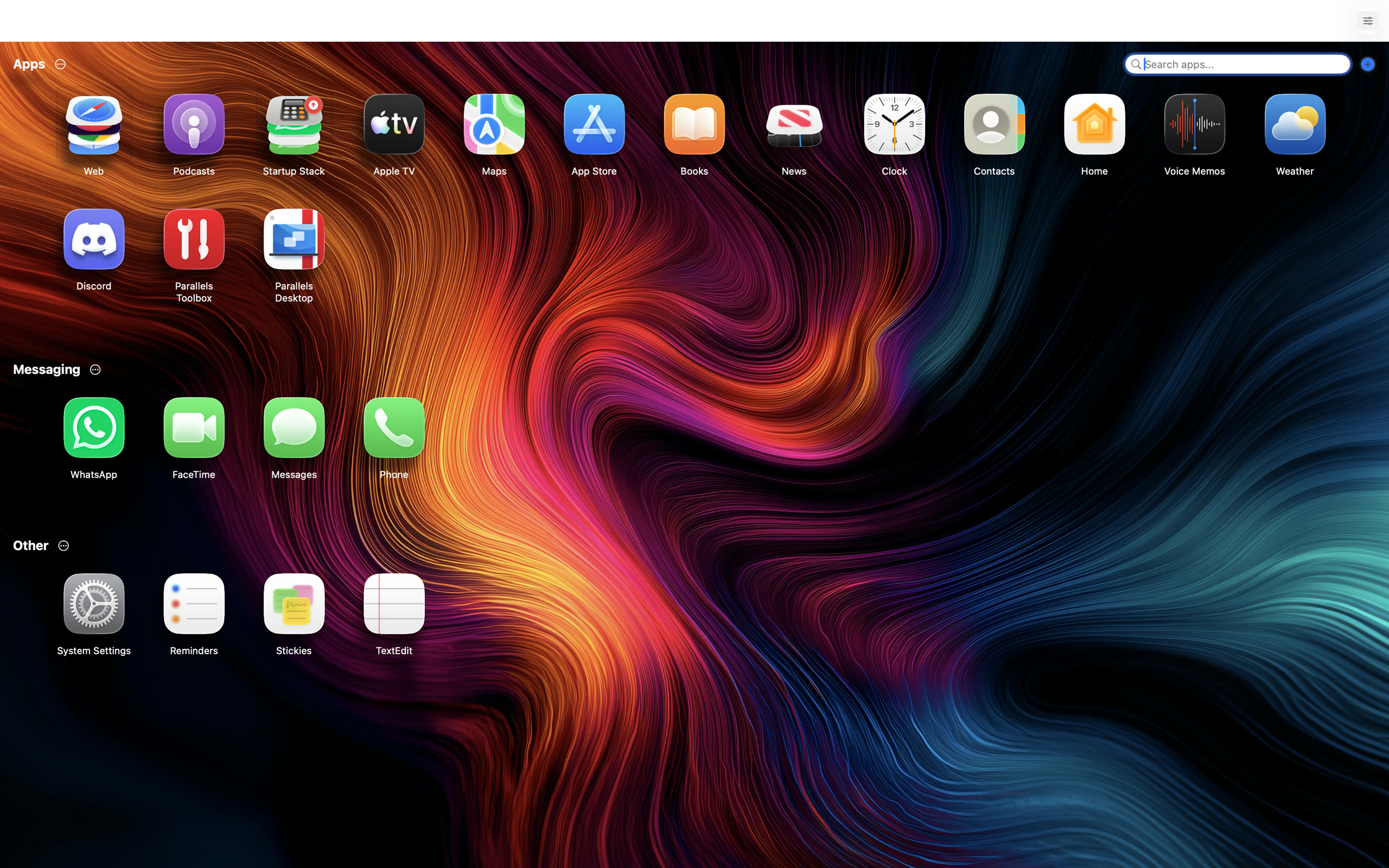
26 display themes out of the box: hand-crafted wallpapers, gradient fills, frosted glass, and animated backgrounds. Browse, preview, apply.
Animated video backgrounds that loop seamlessly. GPU-accelerated and designed to stay in the background without distraction.
Use your own wallpaper, static image, or MP4 video as your background. Loop, play once, or replay on each screen change. Adjustable speed. Separate settings for windowed and fullscreen.
Switch on Glass mode for a modern translucent feel. Tune the opacity until it's just right over your desktop.
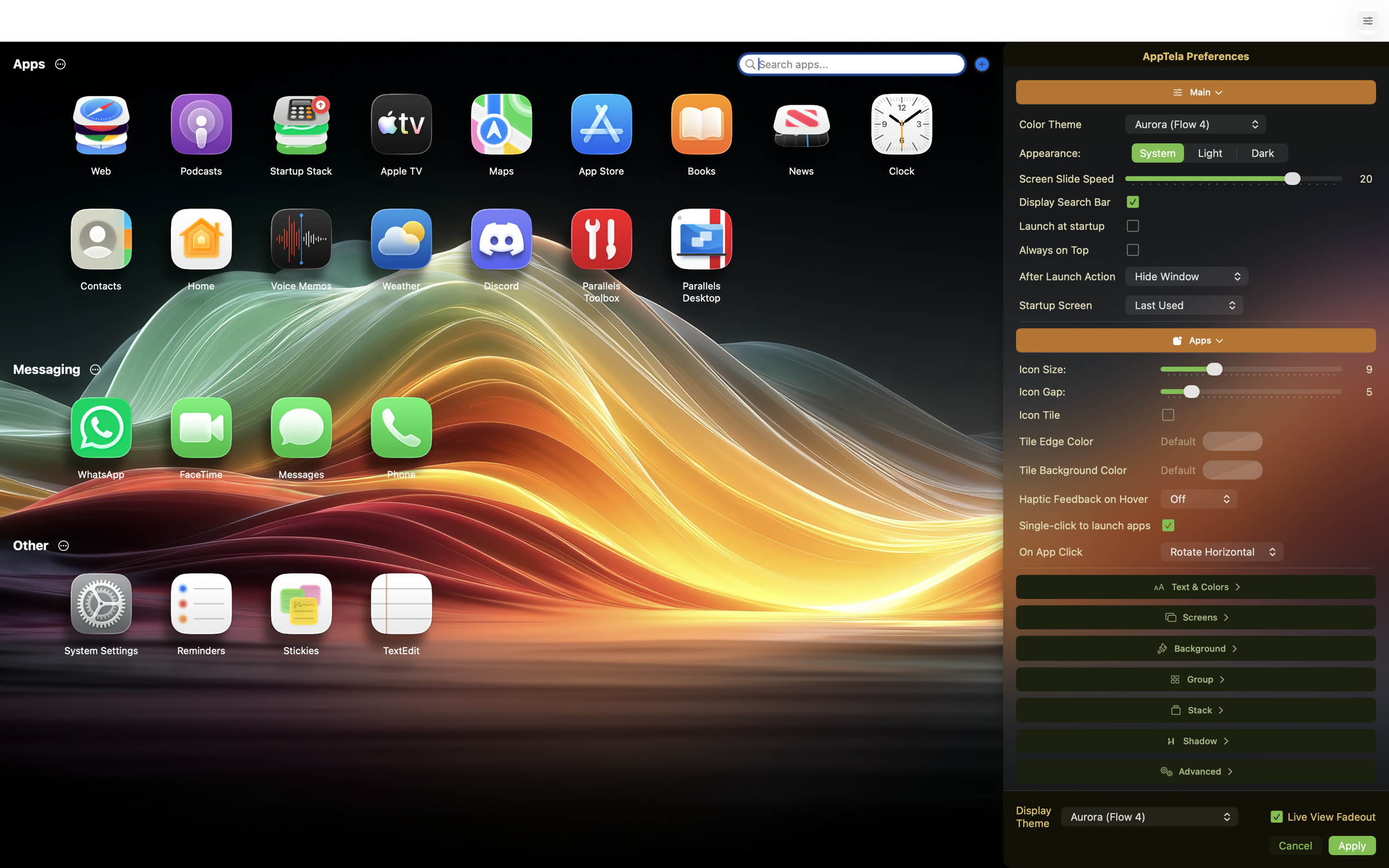
The redesigned preferences panel slides in alongside your layout. Every change is previewed in place - themes, colours, sizing, shadows - before you apply. Cancel anytime.
Icon sizes, labels, colours, shadows and screen navigation. Every visual element in AppTela is tunable in real time, with live preview.
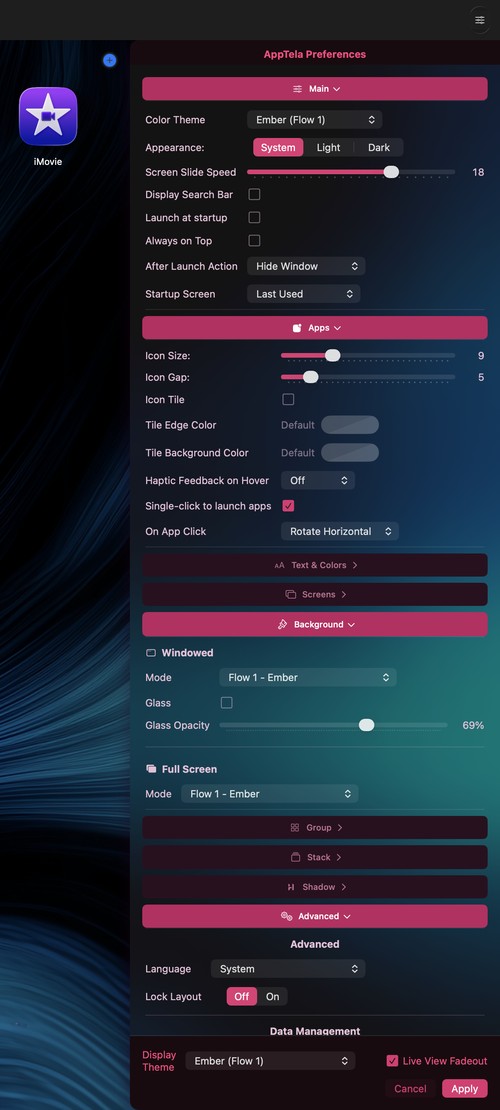
Choose a colour theme, set light/dark/system appearance, configure launch at startup, always on top, after-launch action, and startup screen.
Icon size and spacing, tile borders and colours, haptic feedback on hover, single or double-click to launch, and app click animation.
Independent text size and colour for app labels, category headings, screen names, group titles, and stack titles. Applied automatically by themes or set manually via colour picker.
Manage your screens and choose the navigation style: thumbnail dropdown, menu bar strip, pill indicator, or hidden.
Choose from built-in themes, gradients, your own wallpaper, or MP4 video. Glass mode with adjustable opacity. Independent settings per mode.
Glass or solid background, opacity, border colour and thickness, close button visibility. Each group window is independently styled.
Vertical or horizontal layout, 3D or flat icon style, hover/click/double-click to open, expand transition speed, and launch gesture.
Clock-based Shadow Time or fixed angle. Adjustable depth and colour. Raise and rotate effects on screen change or timed intervals.
10 languages, lock layout, export your setup to back up or move between Macs, import to restore, erase - including reset to defaults.
Optionally launch AppTela when your Mac starts. Ready the moment you log in.
Choose which Screen opens on launch. Return to your last-used Screen or always start on a specific one.
Single-click or double-click to launch apps. Same flexibility for Launch Stacks.
Set AppTela to automatically hide, close, or stay visible after opening an app.
Type to instantly filter apps. Any app on your Mac that isn't in AppTela can be added from the search results.
English, Spanish, French, Italian, German, Portuguese (BR & PT), Simplified Chinese, Korean and Japanese.
Export your entire layout as a single file. Import on another Mac to restore everything - Screens, Categories, Groups, Stacks and settings.
A subtle trackpad tap as you hover over icons. Off by default, a tactile layer when you want it.
On first launch (or after a reset), AppTela scans your Mac and builds a demo layout - apps organised into categories with pre-built stacks to get you started.
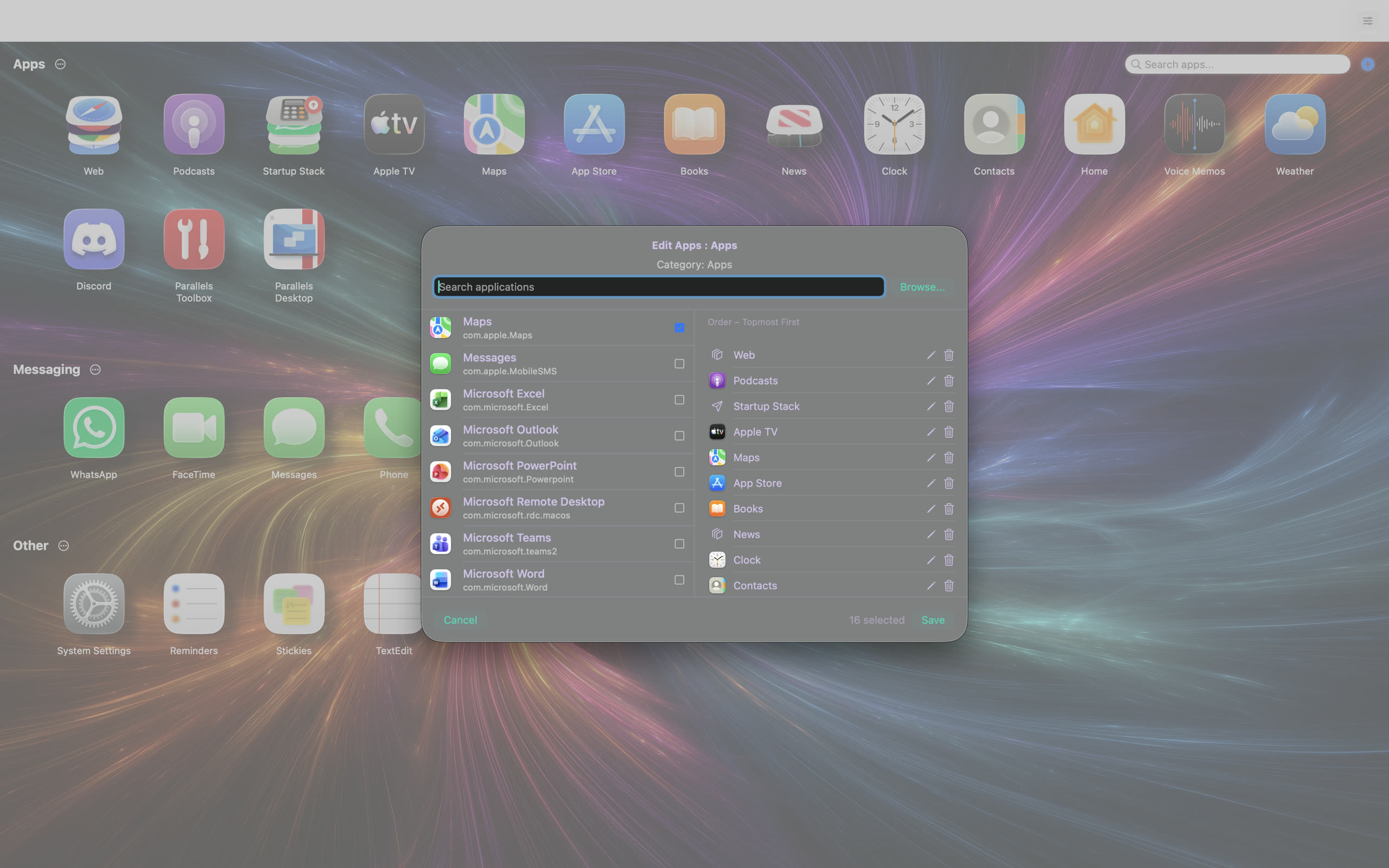
Add and edit apps using the built-in app selector. Browse every app on your Mac - not just /Applications. Apps in Downloads, Desktop, Homebrew, and custom folders are all available to add.
Right-click any app, group, stack or category for quick actions. Move, copy, clone, rename. Drag and drop works everywhere too - drop one app onto another to create a Group, Stack, or Launch Stack.
Browse apps from /Applications, Downloads, Desktop, Homebrew, and any custom location. Add to any Screen, Category, Group or Stack.
Open the app selector for any Category, Group or Stack to add or remove apps from a full list of what's installed on your Mac.
Right-click any app, group or stack to move, copy, clone, rename or remove. Right-click empty space to create new Categories, Groups or Stacks.
Drag apps between Screens, Categories, Groups and Stacks. Drop one app onto another to combine them into a Group, Stack, or Launch Stack.
Stack related apps together and expand them with a peel-away transition, or open every app in a Launch Stack with a single click.
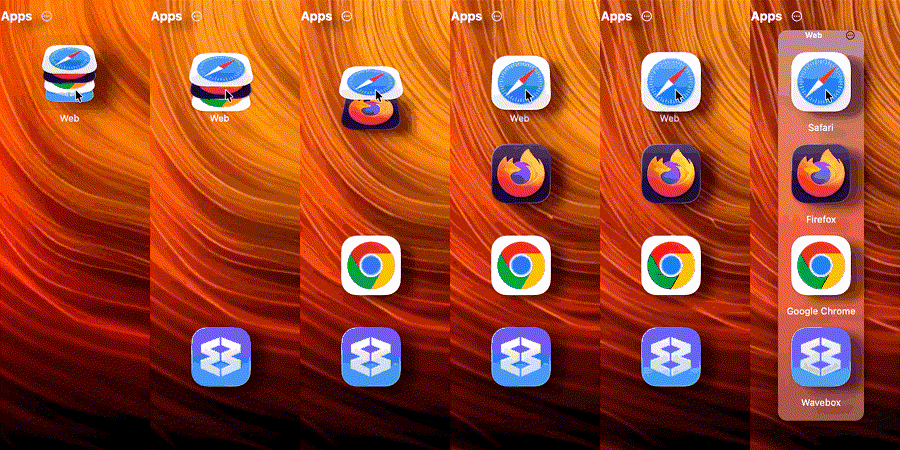
Click a stack icon and its apps expand with a peel-away transition. Configure the layout vertical or horizontal, and choose between click, double-click or hover to open.

Group a set of apps into a Launch Stack and open them all with a single click. Apps launch in sequence so nothing gets lost. Perfect for morning routines, project setups, and switching between work modes.
Create stacks by dragging one app onto another.
Configure hover or click to open Hover Stacks. Single or double-click to fire Launch Stacks.
Stack windows have their own text size, colours and title settings. Consistent with your theme, or uniquely styled.
AppTela gives you the flexibility macOS doesn't.
Built with Swift and SwiftUI for macOS Sequoia and Tahoe.